Lab 10 3
Summary:
In this lab we used simulation mode to investigate http packets, we also configured a router with two different broadcast domains.
I had no issues completing the lab
Summary of understanding:
- Document the use of "Simulation Mode"
- The use of simulation mode is to see packets one hop at a time, and to investigate individual packets as needed
- Document how to save configurations on routers
- from an enabled cli you run
copy running-config startup-config
- from an enabled cli you run
Packet Tracer Simple 2 Network - Class Lab
Objectives: Build and observe a Simple Network with 2 Networks
Goals:
- Identify the impact of each networks as it's own Broadcast Domain
- Examine HTTPS packets from a top-down perspective of the environment.
Lab Steps
Build the following network within Packet Tracer:
-
Network address for Foster is 192.168.3.0/24 and Network address for Skiff is 192.168.1.0/24. Configure IP addresses, subnet masks, and default gateways for the router interfaces and the PC and server following that network information.
-
Ping server from laptop
Submit: screenshot of successful ping (2 Points)

Traffic Analysis in Packet Tracer
-
Go into "Simulation Mode" in Packet Tracer (stopwatch on lower right)
-
From Laptop - open up "Web Browser" on Laptop Desktop
-
Enter the IP address of server and hit "go"
-
Use Capture/Forward to send to packets hop-by-hop
-
Continue until you see HTTP Packets in the Simulation Panel
6. Review Packet Details of a HTTP Packet in the Simulation Panel
SUBMIT: Screenshot of Details (Inbound or Outbound PDU) of a HTTP packet that includes the Source/Destination MAC, Source/Destination IP Address (2 Points)

Practice Saving Router config
-
Go back to Real-Time mode (clock)
-
From Router: Config Tab: Save NVRAM
-
From Router: Got to "Physical Tab" and use power button to turn off router.
-
Power back on by clicking the button again
-
Use Fast Forward button to get links back
-
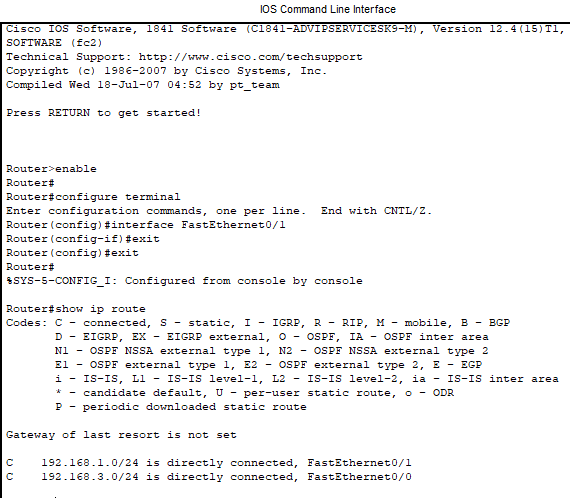
Check router to make sure Interface IP's are still there
7. Submit Screenshot of CNCS Router showing IP address on an Interface (2 Points)